> For the complete documentation index, see [llms.txt](https://dataflint.gitbook.io/dataflint-for-spark/llms.txt). Markdown versions of documentation pages are available by appending `.md` to page URLs; this page is available as [Markdown](https://dataflint.gitbook.io/dataflint-for-spark/dataflint-copilot/copilot-in-cursor.md).
# Copilot in Cursor
## Extension Installation guide
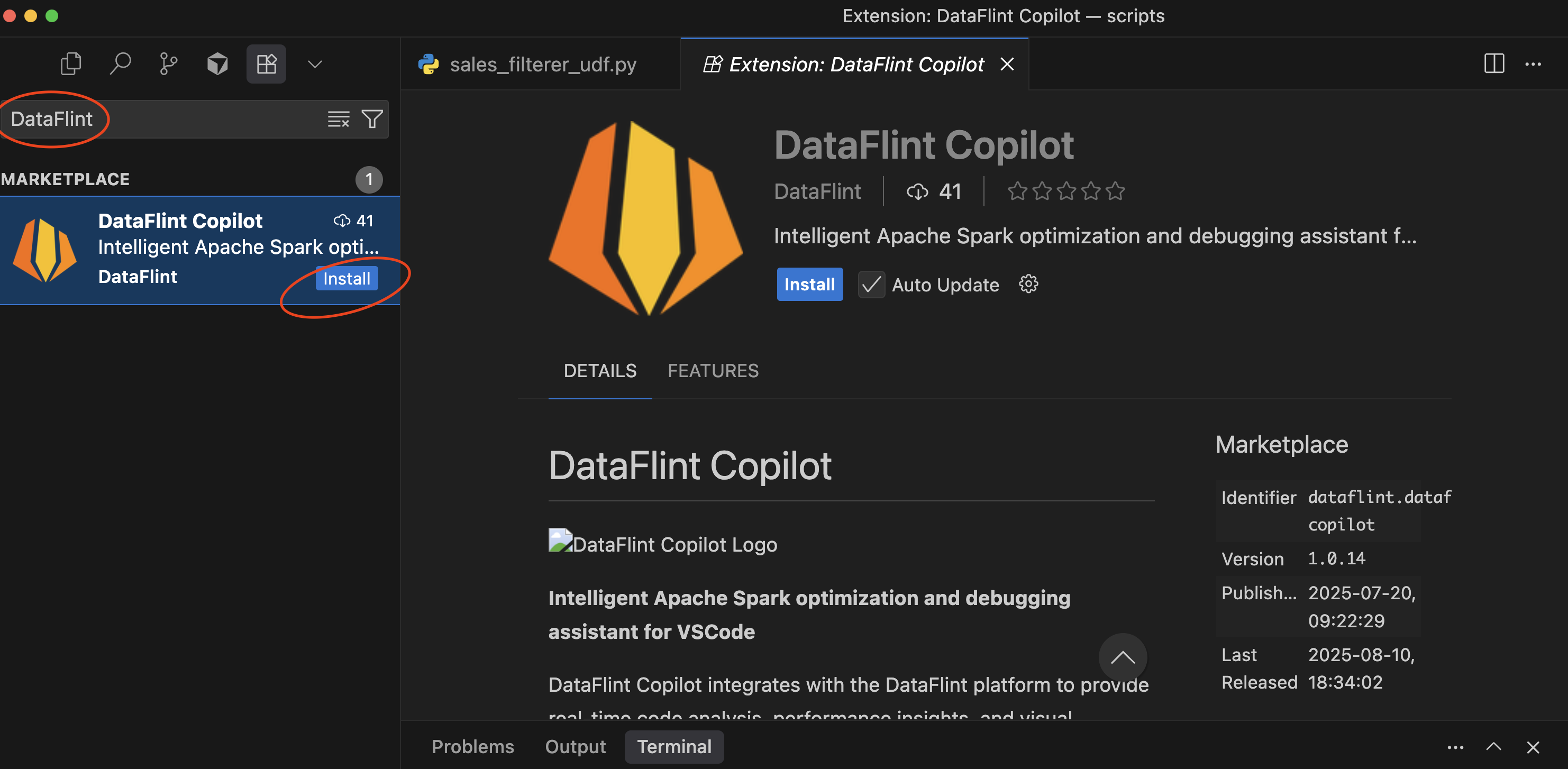
1. In Cursor, go to Extension tab:
1. Search for DataFlint and press "Install"
3. **(BYOC customers only)** open vscode config and change "customer domain" to the your customer name!
4. DataFlint icon was added to the status bar, press on it (or alternatively, run the command "DataFlint: Login")
4. You will be get this popup, press Open (and also suggested to set "Configure Trusted Domains" and press enter afterwards)
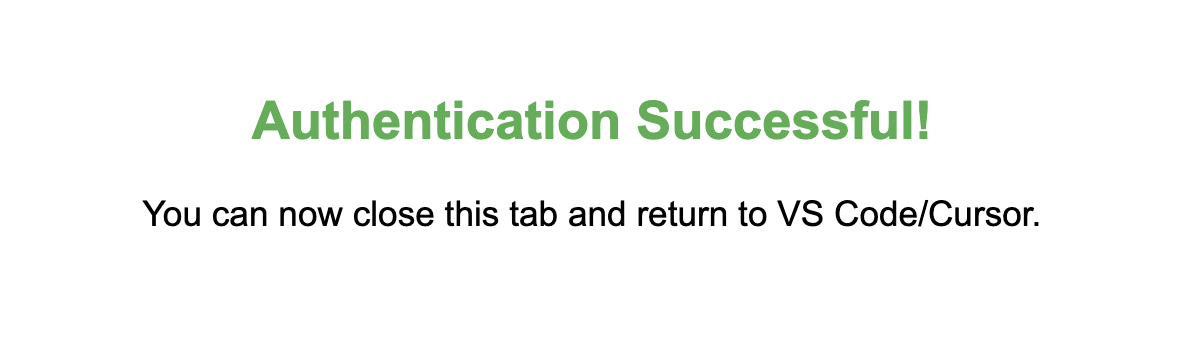
5. In the link you will log in using your Google OAuth, afterward you should get this screen:
6. ONLY FOR BYOC/SINGLE TENENT CUSTOMER - run command-p, choose Set Customer Domain and enter your company name (for example - dataflint). For SaaS customer this is not needed.
7. Return to Cursor, you should see a DataFlint "connect" icon, meaning you authenticated successfully
7. You will get a popup to enable `dataflint-copilot` MCP server, press "enable". \
It can also enabled by going to settings -> tools and integration -> MCP Tools -> dataflint-copilot -> enable toggle
8. Verify your installation:
1. Open Cursor
2. Go to **Cursor Settings** -> In the left sidebar, click on **Tools & MCP**
3. Look for DataFlint in the MCP servers list
After this step, your AI IDE is connected to your DataFlint SaaS account via MCP and you are ready to go!
### Alternative - install only MCP server
This guide shows you how to install and configure the DataFlint MCP (Model Context Protocol) server in Cursor, and not the full IDE extension
The entire process should take just a few minutes.
The steps are:
1. Prerequisites - Ensure you have the required tools installed
2. Configure Cursor
3. Authenticate with your organization
4. Verify the installation
### Prerequisites
Before installing the DataFlint MCP server, ensure you have:
* **Node.js** (version 18 or higher) installed on your system
* **npm** or **npx** available in your command line
* **Cursor** application installed
* Your **organization's customer domain** - Only for BYOC (bring your own cloud) customers. Contact your DataFlint admin if you don't know this.
### Installation
#### Step 1: Open MCP configuration in Cursor
You can configure DataFlint MCP directly in Cursor's settings:
1. Open Cursor
2. Go to **Cursor** menu → **Settings...** → **Cursor Settings**
3. In the left sidebar, click on **Tools & MCP**
4. Click the **Add Custom MCP** button
#### Step 2: Configure DataFlint MCP server
In the MCP configuration dialog that appears, add the DataFlint MCP server configuration:
**For SaaS customers:**
```json
{
"mcpServers": {
"dataflint": {
"command": "npx",
"args": [
"-y",
"@dataflint/mcp-server@latest"
]
}
}
}
```
**For BYOC (bring your own cloud) customers:**
```json
{
"mcpServers": {
"dataflint": {
"command": "npx",
"args": [
"-y",
"@dataflint/mcp-server@latest",
"--customer-domain",
"YOUR_COMPANY_NAME"
]
}
}
}
```
Click **Save** to apply the configuration.
#### Step 3: First-time authentication
When you first use DataFlint MCP in Cursor:
1. Your browser will automatically open to your organization's authentication page
2. Log in with your organization credentials
3. Subsequent uses will not require browser authentication!
After successful authentication, you can close the browser and return to Cursor.
#### Test the connection
In the Cline chat panel, try asking:
```
"Find my top 5 application to fix by using DataFlint MCP"
```